PersonalVehicleSaver 1.1.3


1 433
30
1 433
30
PersonalVehicleSaver - Personal Vehicle Save & Tracking Script
Let your beloved car never be lost, achieving a true "private garage" experience.
(Author's note: I have been using similar scripts myself, but unfortunately, either they cannot save interior colors correctly, or they cannot save vehicle modifications. Almost none can fully preserve all vehicle parameters. So I decided to make one myself, a script that can completely save most vehicle-related parameters, making every restoration nearly perfect.)
This is a fully independent dll script that allows you to save the vehicle you are currently driving to a local file with one key, and generate a trackable map blip in the game world. No matter where you are, the saved vehicle will automatically spawn when you approach and despawn when you move away, completely saying goodbye to the worry of losing your vehicle.
[Required Plugins]
ScriptHookV (http://www.dev-c.com/gta5/scripthookv)
dinput8.dll (provided with ScriptHookV)
ScriptHookVDotNet v3.7.0 or above, or the enhanced version SHVDNE (https://github.com/Chiheb-Bacha/scripthookvdotnetenhanced/releases)
.NET Framework 4.8 or higher
[Core Features]
One-key save / remove vehicle
Default hotkey: Space + K
While sitting in the target vehicle, press both keys simultaneously to register the vehicle as your "personal vehicle".
Pressing the same hotkey again while in the same vehicle will delete the save file and remove the tracking status; the vehicle will no longer auto-spawn.
Auto Spawn & Despawn
Spawn distance: When you approach the saved vehicle's location (default 150 meters), the vehicle will automatically respawn and restore all its modifications, colors, liveries, etc.
Despawn distance: When you move more than 300 meters away from the vehicle, it will automatically be deleted (saving game performance).
At most 1 vehicle is spawned per game frame to avoid performance drops.
Different vehicle types, different map icons
The script automatically assigns a corresponding map blip icon based on the actual vehicle type, allowing you to distinguish at a glance:
Sports / Super cars → standard vehicle icon
Motorcycles → motorcycle-specific icon
Planes → plane icon
Helicopters → helicopter icon
Boats → boat icon
Service / Emergency vehicles → special service icon
License plate & Blip color
Each saved vehicle generates a colored map blip at the coordinates where it was saved.
The blip color changes according to the protagonist:
Franklin → Green
Michael → Blue
Trevor → Orange
Other characters → Gold
When you are driving your own saved vehicle, its corresponding blip is temporarily hidden; after you get out or switch vehicles, the blip reappears.
Full vehicle state saving
The script stores all of the following attributes, ensuring nearly 100% fidelity:
Primary color, secondary color, pearlescent color, wheel color, trim color, dashboard color
All modifications (engine, turbo, suspension, brakes, bumpers, exhaust, etc. – 48 items total)
Tire smoke color, neon color, neon light state and color
Window tint, license plate style, license plate number
Livery, wheel type, front/rear wheel customization
Xenon lights and their color, turbo, bulletproof tires
Extra parts (Extras 1-10), convertible roof state
Real-time vehicle position update
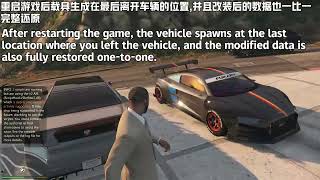
When you exit a saved vehicle after driving it, the script automatically writes the vehicle's latest position and latest modifications to the save file. This means you can park your beloved car in a new location at any time, and even after restarting the game it will spawn from the spot where you last got out. It will not cause another identical vehicle to spawn at the original save location.
[Configuration File Description (VehicleSaver ini)]
After the first run, the script automatically generates VehicleSaver.ini in the scripts/SavedVehicles/ folder. You can modify it as you like.
ini
[Settings]
; Hotkey for saving/removing a vehicle (virtual key codes of two keys, separated by commas)
; Default: 32=Space, 75=K
SaveKey=32,75
; Whether to show map blips for saved vehicles (true/false)
ShowBlips=true
How to customize keys?
Virtual key code reference: Space=32, K=75, L=76, G=71, F5=116, etc.
After modifying, save the file and either reload the script or restart the game for the changes to take effect.
[Installation & Usage]
Place PersonalVehicleSaver dll into your scripts folder (create it if it doesn't exist).
Launch the game – the script will automatically create the SavedVehicles folder and VehicleSaver ini.
Get into any vehicle you want to save, then press Space + K (or your custom hotkey) simultaneously.
A message [License plate] registered as personal vehicle. will appear in the top-left corner.
A colored map blip will appear at the vehicle's location (the icon automatically matches the vehicle type).
To remove the vehicle: get back into the same vehicle and press the same hotkey.
An on-screen message [License plate] unregistered. will appear, the map blip will disappear, and the save file will be deleted.
Saved vehicle files (.sav) are located in scripts/SavedVehicles/. You can manually back them up or share them with other players (they must also have this script or the vehicle model installed).
[Advanced Features]
Persistence guarantee
Saved vehicles are marked as "Mission Entity" and set to be persistent. Even if you switch characters, teleport, or move far away, the vehicle will still correctly respawn when you approach again.
Multiple vehicle independent tracking
You can save any number of vehicles. The script creates a separate file and blip for each vehicle. When you approach any saved location, the corresponding vehicle will automatically spawn.
[Important Notes]
If you manually delete a .sav file, the vehicle will disappear the next time you restart the game.
Do not use other similar vehicle saving scripts simultaneously, to avoid conflicts.
Saved vehicles will not be automatically cleaned up by the game – rest assured.
[Changelog]
v1.0.0 (Initial Release)
--Implemented basic save/delete functionality
--Uses distance-based spawn/despawn mechanism to optimize script performance (prevents lag caused by too many saved vehicles across the --entire map)
--Fully saves all vehicle modifications and color properties
--Dynamic map blips that automatically hide while driving
--Configurable hotkey and blip toggle
--Automatically updates save location and vehicle modifications
--Assigns different map icons based on vehicle type (sports car / motorcycle / plane / helicopter / boat / service vehicle)
v1.1.0
--Fixed issue where vehicles would not load after restarting the game.
--Added detailed log file VehicleSaver_Log.txt for easier troubleshooting.
--Optimized save file parsing performance.
v1.1.1
--Extended loading wait time to 5 seconds
--Added wait state logs to facilitate troubleshooting of loading failures
v1.1.2
--Solved the issue where vehicles would appear in random locations after game restart due to system region settings.
--Extended the loading wait time to 5 seconds to improve loading success rate on slower computers or environments with many mods.
--Note: After updating, please delete all old .sav files in the SavedVehicles folder (old format is incompatible), and use the new version to save vehicles again.
v1.1.3
-- Added generation of only each character's corresponding saved vehicles. For example, you will no longer see Franklin's saved vehicles when controlling Michael. This is reasonable and also optimizes performance overhead.
-- Set personal vehicle icons on the map to hide when beyond a certain distance. You will no longer see all saved vehicle icons on the map.
Let your beloved car never be lost, achieving a true "private garage" experience.
(Author's note: I have been using similar scripts myself, but unfortunately, either they cannot save interior colors correctly, or they cannot save vehicle modifications. Almost none can fully preserve all vehicle parameters. So I decided to make one myself, a script that can completely save most vehicle-related parameters, making every restoration nearly perfect.)
This is a fully independent dll script that allows you to save the vehicle you are currently driving to a local file with one key, and generate a trackable map blip in the game world. No matter where you are, the saved vehicle will automatically spawn when you approach and despawn when you move away, completely saying goodbye to the worry of losing your vehicle.
[Required Plugins]
ScriptHookV (http://www.dev-c.com/gta5/scripthookv)
dinput8.dll (provided with ScriptHookV)
ScriptHookVDotNet v3.7.0 or above, or the enhanced version SHVDNE (https://github.com/Chiheb-Bacha/scripthookvdotnetenhanced/releases)
.NET Framework 4.8 or higher
[Core Features]
One-key save / remove vehicle
Default hotkey: Space + K
While sitting in the target vehicle, press both keys simultaneously to register the vehicle as your "personal vehicle".
Pressing the same hotkey again while in the same vehicle will delete the save file and remove the tracking status; the vehicle will no longer auto-spawn.
Auto Spawn & Despawn
Spawn distance: When you approach the saved vehicle's location (default 150 meters), the vehicle will automatically respawn and restore all its modifications, colors, liveries, etc.
Despawn distance: When you move more than 300 meters away from the vehicle, it will automatically be deleted (saving game performance).
At most 1 vehicle is spawned per game frame to avoid performance drops.
Different vehicle types, different map icons
The script automatically assigns a corresponding map blip icon based on the actual vehicle type, allowing you to distinguish at a glance:
Sports / Super cars → standard vehicle icon
Motorcycles → motorcycle-specific icon
Planes → plane icon
Helicopters → helicopter icon
Boats → boat icon
Service / Emergency vehicles → special service icon
License plate & Blip color
Each saved vehicle generates a colored map blip at the coordinates where it was saved.
The blip color changes according to the protagonist:
Franklin → Green
Michael → Blue
Trevor → Orange
Other characters → Gold
When you are driving your own saved vehicle, its corresponding blip is temporarily hidden; after you get out or switch vehicles, the blip reappears.
Full vehicle state saving
The script stores all of the following attributes, ensuring nearly 100% fidelity:
Primary color, secondary color, pearlescent color, wheel color, trim color, dashboard color
All modifications (engine, turbo, suspension, brakes, bumpers, exhaust, etc. – 48 items total)
Tire smoke color, neon color, neon light state and color
Window tint, license plate style, license plate number
Livery, wheel type, front/rear wheel customization
Xenon lights and their color, turbo, bulletproof tires
Extra parts (Extras 1-10), convertible roof state
Real-time vehicle position update
When you exit a saved vehicle after driving it, the script automatically writes the vehicle's latest position and latest modifications to the save file. This means you can park your beloved car in a new location at any time, and even after restarting the game it will spawn from the spot where you last got out. It will not cause another identical vehicle to spawn at the original save location.
[Configuration File Description (VehicleSaver ini)]
After the first run, the script automatically generates VehicleSaver.ini in the scripts/SavedVehicles/ folder. You can modify it as you like.
ini
[Settings]
; Hotkey for saving/removing a vehicle (virtual key codes of two keys, separated by commas)
; Default: 32=Space, 75=K
SaveKey=32,75
; Whether to show map blips for saved vehicles (true/false)
ShowBlips=true
How to customize keys?
Virtual key code reference: Space=32, K=75, L=76, G=71, F5=116, etc.
After modifying, save the file and either reload the script or restart the game for the changes to take effect.
[Installation & Usage]
Place PersonalVehicleSaver dll into your scripts folder (create it if it doesn't exist).
Launch the game – the script will automatically create the SavedVehicles folder and VehicleSaver ini.
Get into any vehicle you want to save, then press Space + K (or your custom hotkey) simultaneously.
A message [License plate] registered as personal vehicle. will appear in the top-left corner.
A colored map blip will appear at the vehicle's location (the icon automatically matches the vehicle type).
To remove the vehicle: get back into the same vehicle and press the same hotkey.
An on-screen message [License plate] unregistered. will appear, the map blip will disappear, and the save file will be deleted.
Saved vehicle files (.sav) are located in scripts/SavedVehicles/. You can manually back them up or share them with other players (they must also have this script or the vehicle model installed).
[Advanced Features]
Persistence guarantee
Saved vehicles are marked as "Mission Entity" and set to be persistent. Even if you switch characters, teleport, or move far away, the vehicle will still correctly respawn when you approach again.
Multiple vehicle independent tracking
You can save any number of vehicles. The script creates a separate file and blip for each vehicle. When you approach any saved location, the corresponding vehicle will automatically spawn.
[Important Notes]
If you manually delete a .sav file, the vehicle will disappear the next time you restart the game.
Do not use other similar vehicle saving scripts simultaneously, to avoid conflicts.
Saved vehicles will not be automatically cleaned up by the game – rest assured.
[Changelog]
v1.0.0 (Initial Release)
--Implemented basic save/delete functionality
--Uses distance-based spawn/despawn mechanism to optimize script performance (prevents lag caused by too many saved vehicles across the --entire map)
--Fully saves all vehicle modifications and color properties
--Dynamic map blips that automatically hide while driving
--Configurable hotkey and blip toggle
--Automatically updates save location and vehicle modifications
--Assigns different map icons based on vehicle type (sports car / motorcycle / plane / helicopter / boat / service vehicle)
v1.1.0
--Fixed issue where vehicles would not load after restarting the game.
--Added detailed log file VehicleSaver_Log.txt for easier troubleshooting.
--Optimized save file parsing performance.
v1.1.1
--Extended loading wait time to 5 seconds
--Added wait state logs to facilitate troubleshooting of loading failures
v1.1.2
--Solved the issue where vehicles would appear in random locations after game restart due to system region settings.
--Extended the loading wait time to 5 seconds to improve loading success rate on slower computers or environments with many mods.
--Note: After updating, please delete all old .sav files in the SavedVehicles folder (old format is incompatible), and use the new version to save vehicles again.
v1.1.3
-- Added generation of only each character's corresponding saved vehicles. For example, you will no longer see Franklin's saved vehicles when controlling Michael. This is reasonable and also optimizes performance overhead.
-- Set personal vehicle icons on the map to hide when beyond a certain distance. You will no longer see all saved vehicle icons on the map.
Először Feltöltve: 2026. május 26.
Utoljára Feltöltve: 11 órája
Utoljára Letöltött: 6 perce
31 Hozzászólás
More mods by Lisztdreams:
PersonalVehicleSaver - Personal Vehicle Save & Tracking Script
Let your beloved car never be lost, achieving a true "private garage" experience.
(Author's note: I have been using similar scripts myself, but unfortunately, either they cannot save interior colors correctly, or they cannot save vehicle modifications. Almost none can fully preserve all vehicle parameters. So I decided to make one myself, a script that can completely save most vehicle-related parameters, making every restoration nearly perfect.)
This is a fully independent dll script that allows you to save the vehicle you are currently driving to a local file with one key, and generate a trackable map blip in the game world. No matter where you are, the saved vehicle will automatically spawn when you approach and despawn when you move away, completely saying goodbye to the worry of losing your vehicle.
[Required Plugins]
ScriptHookV (http://www.dev-c.com/gta5/scripthookv)
dinput8.dll (provided with ScriptHookV)
ScriptHookVDotNet v3.7.0 or above, or the enhanced version SHVDNE (https://github.com/Chiheb-Bacha/scripthookvdotnetenhanced/releases)
.NET Framework 4.8 or higher
[Core Features]
One-key save / remove vehicle
Default hotkey: Space + K
While sitting in the target vehicle, press both keys simultaneously to register the vehicle as your "personal vehicle".
Pressing the same hotkey again while in the same vehicle will delete the save file and remove the tracking status; the vehicle will no longer auto-spawn.
Auto Spawn & Despawn
Spawn distance: When you approach the saved vehicle's location (default 150 meters), the vehicle will automatically respawn and restore all its modifications, colors, liveries, etc.
Despawn distance: When you move more than 300 meters away from the vehicle, it will automatically be deleted (saving game performance).
At most 1 vehicle is spawned per game frame to avoid performance drops.
Different vehicle types, different map icons
The script automatically assigns a corresponding map blip icon based on the actual vehicle type, allowing you to distinguish at a glance:
Sports / Super cars → standard vehicle icon
Motorcycles → motorcycle-specific icon
Planes → plane icon
Helicopters → helicopter icon
Boats → boat icon
Service / Emergency vehicles → special service icon
License plate & Blip color
Each saved vehicle generates a colored map blip at the coordinates where it was saved.
The blip color changes according to the protagonist:
Franklin → Green
Michael → Blue
Trevor → Orange
Other characters → Gold
When you are driving your own saved vehicle, its corresponding blip is temporarily hidden; after you get out or switch vehicles, the blip reappears.
Full vehicle state saving
The script stores all of the following attributes, ensuring nearly 100% fidelity:
Primary color, secondary color, pearlescent color, wheel color, trim color, dashboard color
All modifications (engine, turbo, suspension, brakes, bumpers, exhaust, etc. – 48 items total)
Tire smoke color, neon color, neon light state and color
Window tint, license plate style, license plate number
Livery, wheel type, front/rear wheel customization
Xenon lights and their color, turbo, bulletproof tires
Extra parts (Extras 1-10), convertible roof state
Real-time vehicle position update
When you exit a saved vehicle after driving it, the script automatically writes the vehicle's latest position and latest modifications to the save file. This means you can park your beloved car in a new location at any time, and even after restarting the game it will spawn from the spot where you last got out. It will not cause another identical vehicle to spawn at the original save location.
[Configuration File Description (VehicleSaver ini)]
After the first run, the script automatically generates VehicleSaver.ini in the scripts/SavedVehicles/ folder. You can modify it as you like.
ini
[Settings]
; Hotkey for saving/removing a vehicle (virtual key codes of two keys, separated by commas)
; Default: 32=Space, 75=K
SaveKey=32,75
; Whether to show map blips for saved vehicles (true/false)
ShowBlips=true
How to customize keys?
Virtual key code reference: Space=32, K=75, L=76, G=71, F5=116, etc.
After modifying, save the file and either reload the script or restart the game for the changes to take effect.
[Installation & Usage]
Place PersonalVehicleSaver dll into your scripts folder (create it if it doesn't exist).
Launch the game – the script will automatically create the SavedVehicles folder and VehicleSaver ini.
Get into any vehicle you want to save, then press Space + K (or your custom hotkey) simultaneously.
A message [License plate] registered as personal vehicle. will appear in the top-left corner.
A colored map blip will appear at the vehicle's location (the icon automatically matches the vehicle type).
To remove the vehicle: get back into the same vehicle and press the same hotkey.
An on-screen message [License plate] unregistered. will appear, the map blip will disappear, and the save file will be deleted.
Saved vehicle files (.sav) are located in scripts/SavedVehicles/. You can manually back them up or share them with other players (they must also have this script or the vehicle model installed).
[Advanced Features]
Persistence guarantee
Saved vehicles are marked as "Mission Entity" and set to be persistent. Even if you switch characters, teleport, or move far away, the vehicle will still correctly respawn when you approach again.
Multiple vehicle independent tracking
You can save any number of vehicles. The script creates a separate file and blip for each vehicle. When you approach any saved location, the corresponding vehicle will automatically spawn.
[Important Notes]
If you manually delete a .sav file, the vehicle will disappear the next time you restart the game.
Do not use other similar vehicle saving scripts simultaneously, to avoid conflicts.
Saved vehicles will not be automatically cleaned up by the game – rest assured.
[Changelog]
v1.0.0 (Initial Release)
--Implemented basic save/delete functionality
--Uses distance-based spawn/despawn mechanism to optimize script performance (prevents lag caused by too many saved vehicles across the --entire map)
--Fully saves all vehicle modifications and color properties
--Dynamic map blips that automatically hide while driving
--Configurable hotkey and blip toggle
--Automatically updates save location and vehicle modifications
--Assigns different map icons based on vehicle type (sports car / motorcycle / plane / helicopter / boat / service vehicle)
v1.1.0
--Fixed issue where vehicles would not load after restarting the game.
--Added detailed log file VehicleSaver_Log.txt for easier troubleshooting.
--Optimized save file parsing performance.
v1.1.1
--Extended loading wait time to 5 seconds
--Added wait state logs to facilitate troubleshooting of loading failures
v1.1.2
--Solved the issue where vehicles would appear in random locations after game restart due to system region settings.
--Extended the loading wait time to 5 seconds to improve loading success rate on slower computers or environments with many mods.
--Note: After updating, please delete all old .sav files in the SavedVehicles folder (old format is incompatible), and use the new version to save vehicles again.
v1.1.3
-- Added generation of only each character's corresponding saved vehicles. For example, you will no longer see Franklin's saved vehicles when controlling Michael. This is reasonable and also optimizes performance overhead.
-- Set personal vehicle icons on the map to hide when beyond a certain distance. You will no longer see all saved vehicle icons on the map.
Let your beloved car never be lost, achieving a true "private garage" experience.
(Author's note: I have been using similar scripts myself, but unfortunately, either they cannot save interior colors correctly, or they cannot save vehicle modifications. Almost none can fully preserve all vehicle parameters. So I decided to make one myself, a script that can completely save most vehicle-related parameters, making every restoration nearly perfect.)
This is a fully independent dll script that allows you to save the vehicle you are currently driving to a local file with one key, and generate a trackable map blip in the game world. No matter where you are, the saved vehicle will automatically spawn when you approach and despawn when you move away, completely saying goodbye to the worry of losing your vehicle.
[Required Plugins]
ScriptHookV (http://www.dev-c.com/gta5/scripthookv)
dinput8.dll (provided with ScriptHookV)
ScriptHookVDotNet v3.7.0 or above, or the enhanced version SHVDNE (https://github.com/Chiheb-Bacha/scripthookvdotnetenhanced/releases)
.NET Framework 4.8 or higher
[Core Features]
One-key save / remove vehicle
Default hotkey: Space + K
While sitting in the target vehicle, press both keys simultaneously to register the vehicle as your "personal vehicle".
Pressing the same hotkey again while in the same vehicle will delete the save file and remove the tracking status; the vehicle will no longer auto-spawn.
Auto Spawn & Despawn
Spawn distance: When you approach the saved vehicle's location (default 150 meters), the vehicle will automatically respawn and restore all its modifications, colors, liveries, etc.
Despawn distance: When you move more than 300 meters away from the vehicle, it will automatically be deleted (saving game performance).
At most 1 vehicle is spawned per game frame to avoid performance drops.
Different vehicle types, different map icons
The script automatically assigns a corresponding map blip icon based on the actual vehicle type, allowing you to distinguish at a glance:
Sports / Super cars → standard vehicle icon
Motorcycles → motorcycle-specific icon
Planes → plane icon
Helicopters → helicopter icon
Boats → boat icon
Service / Emergency vehicles → special service icon
License plate & Blip color
Each saved vehicle generates a colored map blip at the coordinates where it was saved.
The blip color changes according to the protagonist:
Franklin → Green
Michael → Blue
Trevor → Orange
Other characters → Gold
When you are driving your own saved vehicle, its corresponding blip is temporarily hidden; after you get out or switch vehicles, the blip reappears.
Full vehicle state saving
The script stores all of the following attributes, ensuring nearly 100% fidelity:
Primary color, secondary color, pearlescent color, wheel color, trim color, dashboard color
All modifications (engine, turbo, suspension, brakes, bumpers, exhaust, etc. – 48 items total)
Tire smoke color, neon color, neon light state and color
Window tint, license plate style, license plate number
Livery, wheel type, front/rear wheel customization
Xenon lights and their color, turbo, bulletproof tires
Extra parts (Extras 1-10), convertible roof state
Real-time vehicle position update
When you exit a saved vehicle after driving it, the script automatically writes the vehicle's latest position and latest modifications to the save file. This means you can park your beloved car in a new location at any time, and even after restarting the game it will spawn from the spot where you last got out. It will not cause another identical vehicle to spawn at the original save location.
[Configuration File Description (VehicleSaver ini)]
After the first run, the script automatically generates VehicleSaver.ini in the scripts/SavedVehicles/ folder. You can modify it as you like.
ini
[Settings]
; Hotkey for saving/removing a vehicle (virtual key codes of two keys, separated by commas)
; Default: 32=Space, 75=K
SaveKey=32,75
; Whether to show map blips for saved vehicles (true/false)
ShowBlips=true
How to customize keys?
Virtual key code reference: Space=32, K=75, L=76, G=71, F5=116, etc.
After modifying, save the file and either reload the script or restart the game for the changes to take effect.
[Installation & Usage]
Place PersonalVehicleSaver dll into your scripts folder (create it if it doesn't exist).
Launch the game – the script will automatically create the SavedVehicles folder and VehicleSaver ini.
Get into any vehicle you want to save, then press Space + K (or your custom hotkey) simultaneously.
A message [License plate] registered as personal vehicle. will appear in the top-left corner.
A colored map blip will appear at the vehicle's location (the icon automatically matches the vehicle type).
To remove the vehicle: get back into the same vehicle and press the same hotkey.
An on-screen message [License plate] unregistered. will appear, the map blip will disappear, and the save file will be deleted.
Saved vehicle files (.sav) are located in scripts/SavedVehicles/. You can manually back them up or share them with other players (they must also have this script or the vehicle model installed).
[Advanced Features]
Persistence guarantee
Saved vehicles are marked as "Mission Entity" and set to be persistent. Even if you switch characters, teleport, or move far away, the vehicle will still correctly respawn when you approach again.
Multiple vehicle independent tracking
You can save any number of vehicles. The script creates a separate file and blip for each vehicle. When you approach any saved location, the corresponding vehicle will automatically spawn.
[Important Notes]
If you manually delete a .sav file, the vehicle will disappear the next time you restart the game.
Do not use other similar vehicle saving scripts simultaneously, to avoid conflicts.
Saved vehicles will not be automatically cleaned up by the game – rest assured.
[Changelog]
v1.0.0 (Initial Release)
--Implemented basic save/delete functionality
--Uses distance-based spawn/despawn mechanism to optimize script performance (prevents lag caused by too many saved vehicles across the --entire map)
--Fully saves all vehicle modifications and color properties
--Dynamic map blips that automatically hide while driving
--Configurable hotkey and blip toggle
--Automatically updates save location and vehicle modifications
--Assigns different map icons based on vehicle type (sports car / motorcycle / plane / helicopter / boat / service vehicle)
v1.1.0
--Fixed issue where vehicles would not load after restarting the game.
--Added detailed log file VehicleSaver_Log.txt for easier troubleshooting.
--Optimized save file parsing performance.
v1.1.1
--Extended loading wait time to 5 seconds
--Added wait state logs to facilitate troubleshooting of loading failures
v1.1.2
--Solved the issue where vehicles would appear in random locations after game restart due to system region settings.
--Extended the loading wait time to 5 seconds to improve loading success rate on slower computers or environments with many mods.
--Note: After updating, please delete all old .sav files in the SavedVehicles folder (old format is incompatible), and use the new version to save vehicles again.
v1.1.3
-- Added generation of only each character's corresponding saved vehicles. For example, you will no longer see Franklin's saved vehicles when controlling Michael. This is reasonable and also optimizes performance overhead.
-- Set personal vehicle icons on the map to hide when beyond a certain distance. You will no longer see all saved vehicle icons on the map.
Először Feltöltve: 2026. május 26.
Utoljára Feltöltve: 11 órája
Utoljára Letöltött: 6 perce
 5mods on Discord

Note: Using version 1.1.3 requires deleting the existing SavedVehicles folder to prevent read conflicts and various issues.
Hi, good idea but mod doesnt load vehicle after game restart at previous saved location, please fix.
@DoctorTech97 The issue is most likely fixed. It may have been caused by the vehicle loading too early in version 1.0. Please try updating to v1.1. If you still have problems, feel free to report back, or send me the contents of the VehicleSaver_Log file in the SavedVehicles folder. Thank you for your feedback.
Mod loads vehicle now after game restart but at completely different location on map?
Getting better tho, almost there, please fix
@LamarDav1s Thank you for the feedback. However, this script saves the vehicle's spawn location based on where you last exited the vehicle, not the original location where you first pressed Ctrl+K to save it. Could this be the reason for the issue?
No sorry mate, tried both by the way, tested after just exiting and pressing space + K. After rstarting the game the save location is completely random, even in mountains and in the sea north above the map. No errors in logfile. Hope you can solve it, would be great if it works.
@LamarDav1s Please follow the steps below and send me the results: 1. Delete all .sav files in the SavedVehicles folder. 2. Enter the game, get into a vehicle, and press Space + K to save. (Note: After saving, you must exit the vehicle. The first time you save a vehicle, the coordinate position is only written after you exit the vehicle. Then quit the game.) 3. Open the latest .sav file in the SavedVehicles folder with Notepad, copy the first line (e.g., -3077.614,537.9761,1.7086,12.34). 4. Open SavedVehicles\VehicleSaver_Log.txt and copy the last few lines (including the line with LOADED) to me as well. This way I can compare whether the original saved coordinates match the coordinates parsed by the script, and determine if the issue is a position offset caused by the system's decimal format. Thank you for your cooperation!🤝
Apparently coords aren't loaded correctly, here's the feedback:
3.
-357,5006,-177,4291,37,5471,28,5821
4.
2026-05-29 19:24:20 - Script initialized. Save folder: D:\GTAV Mod\scripts\SavedVehicles
2026-05-29 19:24:20 - Config loaded: SaveKey=Space+K, ShowBlips=True
2026-05-29 19:24:20 - Game ready after 0ms, loading vehicles...
2026-05-29 19:24:21 - LoadAllMeta started.
2026-05-29 19:24:21 - Found 0 .sav files.
2026-05-29 19:24:21 - LoadAllMeta finished. Total valid vehicles: 0
2026-05-29 19:24:21 - Vehicle loading completed successfully.
2026-05-29 19:27:43 - Registered new vehicle: 06YUZ637 -> D:\GTAV Mod\scripts\SavedVehicles\BORN_06YUZ637_20260529192743.sav
2026-05-29 19:32:45 - Script initialized. Save folder: D:\GTAV Mod\scripts\SavedVehicles
2026-05-29 19:32:45 - Config loaded: SaveKey=Space+K, ShowBlips=True
2026-05-29 19:32:46 - Game ready after 0ms, loading vehicles...
2026-05-29 19:32:46 - LoadAllMeta started.
2026-05-29 19:32:46 - Found 1 .sav files.
2026-05-29 19:32:46 - LOADED BORN_06YUZ637_20260529192743.sav: Model=-1625523803, Plate=06YUZ637, Pos=-357,5006,-177
2026-05-29 19:32:46 - LoadAllMeta finished. Total valid vehicles: 1
2026-05-29 19:32:46 - Vehicle loading completed successfully.
@LamarDav1s Thank you for the feedback. I roughly know what the problem is now. I should be able to create and upload a version 1.1.2 tomorrow, which should solve your current issue.
Thx amigo, looking forward to it!
@LamarDav1s Version 1.1.2 has been updated. Please try again to test if the functions work normally.
Spot on. Worrking great now, thx amigo!
@LamarDav1s Thank you for your cooperation and feedback. I'm glad to hear that too.
@DirtSpray It's just caused by your CPU loading speed or too many mods installed in the game, causing the vehicle spawn timing to be missed. You can now update to my latest version 1.1.2.
@Lisztdreams Ok, cars load in after game restart now, nice! However, the game still seems to create duplicates of saved cars when going into some missions. You can test it - drive with a saved car to any peyote plant collectible, go far enough away form your car while in the hallucination, end the hallucination and you will see your car and the unmarked copy of your car. Plus If you could change the blip behaviour to no t be highlited on the mini map all the time and allow us to set custom spawn/despawn distances in the ini file, this mod would be the best vehicle persistence mod out there.
@Lisztdreams
Great mod, but I'd like to see icons on the minimap with the car name + car number, not just the car number, for better finding car on the map.
Got my whip shot by 5-0. Had to grab a tow and drag it down to LSC. Script worked like a pro. Still my ride.
@Lisztdreams Can you make a saved modified car spawnable via phone or by pressing a number or letter on the keyboard? Thanks for sharing.
@Lisztdreams What I mean is that the vehicle we have modified can spawn when we are far from the place where the car was last saved.
Nice mod